The short answer
Read the two status LEDs on the back and any number on the screen. On a PanelView Plus or PanelView Plus 6, a blinking red FAULT LED at startup means reload the firmware, solid red means failed hardware, and both LEDs dark the power supply or logic module; on a PanelView Plus 7 Standard, a blinking ERR LED means reload the firmware or restore the factory image. Touches in the wrong place need calibration; if a USB mouse works where touch doesn't, the touch screen is at fault.
This covers Allen-Bradley PanelView Plus terminals (2711P, the original 400 to 1500 sizes), the PanelView Plus 6 and the PanelView Plus 7 Standard, all running FactoryTalk View ME. For a PanelView Plus 7 Performance, use its own manual, 2711P-UM008.
Key takeaways
- Write down the LED pattern and any error number before you power-cycle again.
- Blinking red usually means firmware; solid red means hardware.
- A USB mouse or keyboard tells a dead touch screen from a stuck application.
FAULT and COMM LEDs (PanelView Plus)
Normally FAULT flashes briefly and COMM comes on. If it halts during startup:
| FAULT (red) | COMM (green) | What it means (our words) |
|---|---|---|
| Off | Off | 700–1500: either the supply or the logic module is dead – look at the power cable first; an input out of range means a new supply, in range a new logic module. 400/600: check the power cable. |
| Blinking | Off | The last firmware download failed: reload it with the Firmware Upgrade Wizard (FUW). |
| Blinking | Blinking / on | The boot loader / the Windows CE operating system firmware is bad or missing: reload the firmware. |
| Solid | Off | Fatal hardware error: replace the logic module (700–1500) or the terminal (400/600). |
| Solid | Blinking | The display hardware has failed: replace the display module (700–1500) or the terminal. |
PanelView Plus 6: both LEDs flash, then COMM flashes during startup and stays on. Both dark: the supply, or with the input in range the logic module or terminal. FAULT blinking, COMM off: reload the firmware with the FUW. FAULT on: a logic module (COMM off) or display module (COMM blinking) fault – on a 400 or 600, the terminal (2711P-UM006, p. 162).
PanelView Plus 7 Standard: STS and ERR
Both LEDs flash, then STS flashes during startup and stays on. Both dark: check the power.
- ERR blinking, STS off: a recoverable firmware error (reload the firmware) or configuration failure (restore the factory default image).
- ERR on, STS on or blinking: fatal hardware or display hardware error – Rockwell's step is to replace the terminal.
Startup error numbers
- PanelView Plus – 24 CRC Check / 40 EXE Check: the operating system firmware is corrupt or missing – reload it, then (700–1500) replace the internal CompactFlash, then the logic module.
- PanelView Plus – 31 Stuck Key, 31.5 or 3a Stuck Touch: clear whatever presses on a key or the screen and restart; if it stays, the display module (or the 400/600 terminal).
- PanelView Plus – 1 RAM Test / 32 Battery Test (700–1500): reseat the RAM / replace the battery, then the logic module.
- PanelView Plus 6 splash screen: Fatal 0F, a failed firmware update – reset the terminal, restore factory defaults or reinstall the firmware; 03, failed RAM – the logic module (700–1500) or terminal; 31, 3A or 3B, a stuck key, stuck touch or failed backlight – the display module; 02, a watchdog reset, usually a passing software failure – watch for repeats (2711P-UM006, p. 165).
Terminal Information shows the battery voltage (replace below 2.75 V DC) and temperatures (display under 55 °C, CPU under 95 °C); on a PanelView Plus 6 the display temperature is under Terminal Settings > Display (2711P-UM006, pp. 163, 65). The System Event Log lists errors and restarts.
Configuration, safe and maintenance mode
A restart into these modes takes the operator screen away: put the machine in a safe state first.
- PanelView Plus: use the application's Goto Configure Mode button. With none, restart and press the white box in the lower-left corner during startup (F1 on keypad terminals). If a terminal set to start in Configuration mode doesn't, reload the firmware.
- PanelView Plus 6: with no Goto Configuration Mode button, choose Safe mode in Maintenance mode, or turn on the safe-mode request at startup in the control panel (p. 168). For Maintenance mode, press the logic module's rear Default switch with a thin non-conductive probe; moving through the menu needs a USB keyboard (p. 171). Rockwell's order: Safe mode, Reset terminal, then Restore factory defaults – the fix for a failed firmware update (pp. 170, 172).
- PanelView Plus 7 Standard: keep a finger on the white box while it starts (or hold F1 on a USB keyboard) for Maintenance mode: Safe mode, Clear all data (keeps the firmware), Factory default (firmware included).
Safe mode opens Configuration mode instead of the .mer, which runs again at the next reset. Copy the .mer first: the reset and factory-default steps delete it.
Touch screen not responding
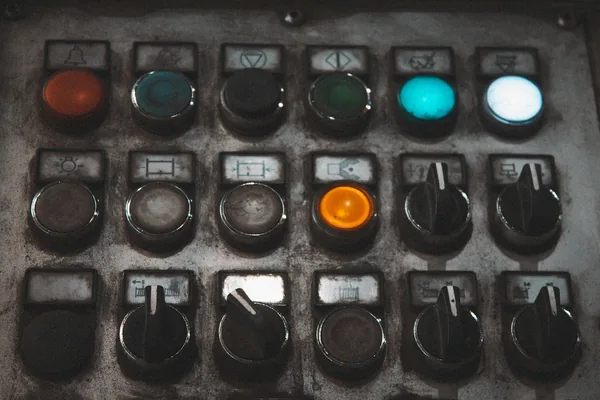
- Offset touches: calibrate under Terminal Settings > Input Devices > Touch Screen > Calibration – four touches on a PanelView Plus, five on a PanelView Plus 6 (2711P-UM006, p. 166). Rockwell's tool for the screen is a finger or a plastic stylus with a tip radius of at least 1.3 mm (p. 14).
- Calibration never finishes: the touch screen is missing or failed – replace the display module (700–1500) or the terminal (400/600).
- No response at all: plug in a USB mouse. Mouse works, touch doesn't: the touch screen or its driver. Neither works: the application.
- Cuts or worn spots on a PanelView Plus 7 screen: replace the terminal.
Firmware and application versions
A PanelView Plus runs .MER files of the same or an earlier FactoryTalk View ME version – a 3.20 terminal runs 3.0, 3.10 and 3.20 applications. If an application won't start, check it has a startup screen and the runtime file matches. PanelView Plus 7 Standard series C hardware needs firmware 8.x or later and series D 13.x or later. An IP address starting with 169.254 means DHCP failed.
First checks
- LEDs and the error number, recorded; nothing pressing on the screen.
- USB mouse or keyboard: hardware or application?
- Battery: 2711P-RY2032 (Rockwell's battery sheet 2711P-IN009K also accepts an equivalent CR2032) on 700–1500, PanelView Plus 6 and 7 terminals, changed with power off – a PanelView Plus 6 400 or 600 can stay in the panel (2711P-UM006, p. 128). On an original PanelView Plus 400 or 600 the battery is permanently connected: replace the terminal.
Moving an application to newer hardware? Our engineering team does PLC and HMI programming.
Safety first: only qualified personnel should work in the cabinet, and any measurement on energized equipment follows your site's live-work and arc-flash rules. Remove power from the terminal before you take off the logic module, change the battery or memory, or clean the screen, following Rockwell Automation's instructions and your site's lockout/tagout procedure. In a hazardous location, plug or unplug USB devices, open the enclosure or change the battery only with power off and the area confirmed non-hazardous (2711P-UM001K, p. 29; 2711P-UM007I, p. 21). An HMI is never an emergency stop: Rockwell warns a touch screen must not be the only control for critical functions. Never force outputs or bypass a safety circuit while the screen is down.
Parts that commonly fail
Terminals and their logic, display and power modules are the hardware behind these failures. The part numbers we have the most of in stock right now:
Stock changes every day. Every listing is photographed, so check the catalog number, series or product version and firmware on the label photo before you buy.
Not listed, or need several? Send us the part number and we'll check our shelves and our sourcing network and quote it in writing.
Sources
Every code, LED state and menu path on this page was checked against Rockwell Automation's own documents, listed below, and is described here in our own words. Manuals change between editions and firmware revisions: for your exact catalog or order number, check the current edition.
- Rockwell Automation, PanelView Plus Terminals User Manual (400, 600, 700, 1000, 1250, 1500 terminals), publication 2711P-UM001K-EN-P, February 2020.
- Rockwell Automation, PanelView Plus 6 Terminals User Manual, publication 2711P-UM006I-EN-P, February 2020.
- Rockwell Automation, PanelView Plus 7 Standard Terminals User Manual, publication 2711P-UM007I-EN-P, March 2023.
- Rockwell Automation, Battery Replacement Installation Instructions (2711P-RY2032), publication 2711P-IN009K-EN-P, March 2019.
Frequently asked questions
What does a blinking red FAULT LED on a PanelView Plus mean?
A recoverable firmware error: the last download failed, or the boot loader or operating system firmware is bad. Reload the firmware with Rockwell's Firmware Upgrade Wizard. A solid red FAULT LED is a fatal hardware error instead.
How do I get a PanelView Plus into configuration mode?
Use the application's Goto Configure Mode button. With none, put the machine in a safe state, restart and press the white box in the lower-left corner during startup (F1 on keypad terminals); on a PanelView Plus 6, use Safe mode from Maintenance mode.
Why does my PanelView Plus touch screen respond in the wrong place?
It needs calibrating: Terminal Settings > Input Devices > Touch Screen > Calibration. If the calibration never finishes, the touch screen is missing or failed: replace the display module (700 to 1500) or the 400 or 600 terminal.
Will a newer .mer application run on an older PanelView Plus?
No. A FactoryTalk View ME terminal runs .MER applications of the same or an earlier version. Upgrade the terminal firmware or create the runtime file for the terminal's version.